
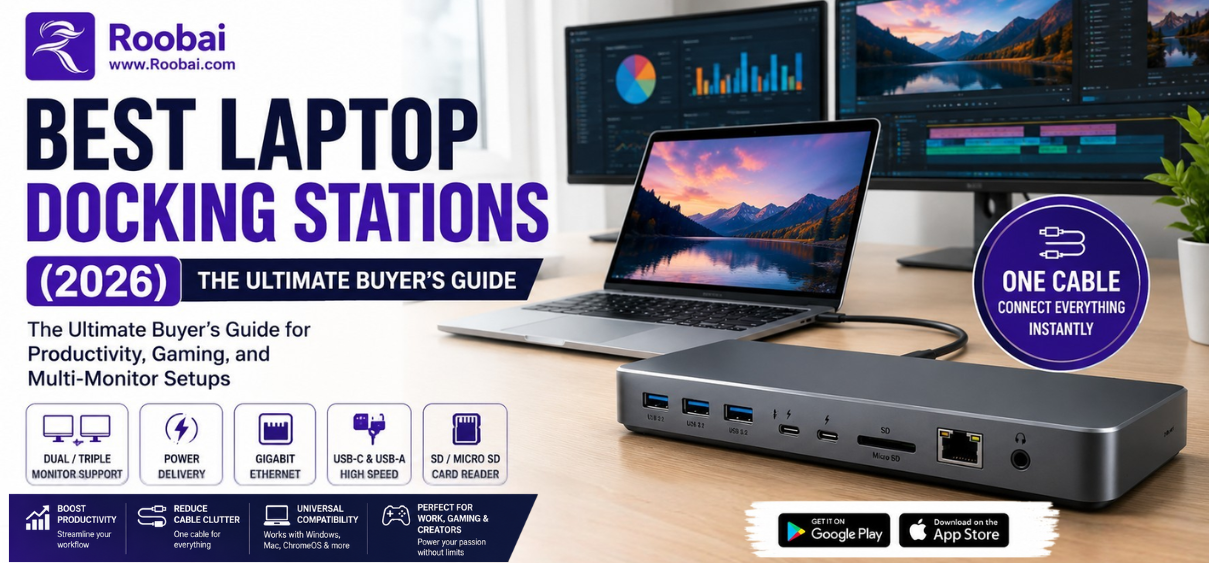
Laptop docking stations have become an essential accessory for professionals, students, gamers, creators, remote workers, and businesses looking to maximize laptop performance while creating a clean and efficient workspace. Whether you're using a Windows laptop, MacBook, Chromebook, or USB-C notebook, the best laptop docking station can instantly transform your portable device into a complete desktop workstation.
Modern docking stations support dual monitors, triple displays, 4K and 8K resolutions, high-speed USB ports, Thunderbolt 4, USB4, Ethernet, SD card readers, Power Delivery (PD), and much more. Instead of constantly plugging in multiple accessories, a single cable connects everything at once.
This comprehensive guide covers everything you need to know before buying the best laptop docking station in 2026, including features, buying tips, comparison tables, compatibility guides, and answers to the most frequently asked questions.
Why You Need a Laptop Docking Station
A docking station is more than just a USB hub. It expands your laptop's capabilities by providing multiple connectivity options through a single connection.
Major Benefits
- Connect multiple monitors
- Charge your laptop simultaneously
- Add wired Ethernet connectivity
- Use external SSDs at full speed
- Connect printers, webcams, microphones, and speakers
- Reduce cable clutter
- Improve productivity
- Support professional workflows
- Enable desktop-like performance
Whether you're editing videos, coding software, attending meetings, trading stocks, or gaming, a quality docking station saves time while improving efficiency.
What Is a Laptop Docking Station?
A laptop docking station is a hardware device that connects to your laptop through:
- USB-C
- Thunderbolt 3
- Thunderbolt 4
- USB4
- USB-A (limited functionality)
Once connected, it expands your laptop with additional ports that may include:
- HDMI
- DisplayPort
- Ethernet
- USB-A
- USB-C
- Audio Jack
- SD Card Reader
- microSD Reader
- VGA
- DC Power Input
Who Should Buy a Laptop Docking Station?
Laptop docking stations are ideal for:
- Remote workers
- Office professionals
- Software developers
- Graphic designers
- Video editors
- Photographers
- Content creators
- Stock traders
- Business travelers
- Students
- Engineers
- Architects
- Gamers
Best Laptop Docking Stations in 2026
| Docking Station | Best For | Display Support | Power Delivery | Connection |
|---|---|---|---|---|
| CalDigit TS4 | Professionals | Dual 6K | 98W | Thunderbolt 4 |
| Anker 777 Dock | Mac & Windows | Triple 4K | 100W | Thunderbolt 4 |
| Plugable UD-6950PDZ | Office Users | Dual 4K | 100W | USB-C |
| Kensington SD5780T | Enterprise | Dual 4K | 96W | Thunderbolt 4 |
| Dell WD22TB4 | Dell Laptops | Dual 4K | 130W | Thunderbolt 4 |
| HP Thunderbolt Dock G4 | HP Business | Dual 4K | 100W | Thunderbolt 4 |
| Lenovo ThinkPad Universal Dock | Lenovo Users | Triple Display | 100W | USB-C |
| UGREEN Revodok Max | Budget Premium | Dual 4K | 100W | USB4 |
| Belkin Connect Pro Dock | Apple Users | Dual Display | 96W | Thunderbolt 4 |
| Baseus 17-in-1 Dock | Budget Choice | Triple Display | 100W | USB-C |
Essential Features to Look for
1. Display Support
A premium docking station should support the following:
- Dual 4K
- Triple 4K
- Dual 6K
- Single 8K
Professionals working with spreadsheets, editing software, and multitasking benefit significantly from multiple displays.
2. Thunderbolt 4 Compatibility
Thunderbolt 4 offers:
- 40Gbps bandwidth
- Faster SSD performance
- Better monitor compatibility
- Daisy chaining
- Improved charging
- Universal compatibility
3. USB4 Support
USB4 delivers many Thunderbolt-like benefits while maintaining affordability.
Advantages include:
- High-speed transfers
- Better compatibility
- External GPU support
- Future-proof technology
4. Power Delivery
Modern docking stations provide:
- 65W
- 85W
- 90W
- 96W
- 100W
- 130W
Higher wattage is recommended for gaming laptops and creator workstations.
5. Ethernet Port
A Gigabit Ethernet connection provides:
- Stable internet
- Lower latency
- Better video conferencing
- Faster downloads
- Reliable cloud backups
6. High-Speed USB Ports
Look for:
- USB 3.2 Gen 2
- USB-C 10Gbps
- USB-A 10Gbps
- USB4
- Thunderbolt downstream ports
7. SD Card Reader
Photographers and videographers should choose docks featuring:
- UHS-II SD reader
- microSD slot
Laptop Docking Station Buying Guide
Choose Based on Your Laptop
Windows Laptop
Best options include:
- Thunderbolt docks
- USB-C docks
- USB4 docks
MacBook
Look for:
- Thunderbolt 4
- macOS compatibility
- Dual external display support
- Apple Silicon optimization
Gaming Laptop
Prioritize:
- High Power Delivery
- Ethernet
- Multiple USB ports
- DisplayPort 1.4
Chromebook
USB-C docking stations generally work well.
USB-C vs Thunderbolt Docking Stations
| Feature | USB-C Dock | Thunderbolt Dock |
|---|---|---|
| Speed | Up to 10Gbps | Up to 40Gbps |
| Price | Lower | Higher |
| Multi-monitor | Good | Excellent |
| SSD Performance | Good | Excellent |
| Future Proof | Moderate | Excellent |
| External GPU | Limited | Supported |
Best Docking Station for Remote Work
Remote workers should prioritize:
- Webcam support
- Dual monitor output
- Ethernet
- Audio jack
- USB-C charging
- Quiet operation
Best Docking Station for Video Editing
Video creators benefit from:
- Thunderbolt 4
- 40Gbps bandwidth
- Dual 6K monitors
- Fast SD reader
- Multiple USB-C ports
Best Docking Station for Software Developers
Developers often require:
- Three monitors
- Gigabit Ethernet
- External SSD support
- Mechanical keyboard
- Fast charging
Best Docking Station for Gaming
Gaming setups benefit from:
- DisplayPort
- HDMI 2.1
- Low latency Ethernet
- Multiple USB ports
- High Power Delivery
Ports You Should Have
An ideal docking station includes:
- HDMI
- DisplayPort
- USB-C
- USB-A
- Ethernet
- Audio Jack
- SD Reader
- microSD Reader
- Power Delivery
- Thunderbolt Ports
Common Laptop Docking Station Problems
Monitor Not Detected
Possible causes:
- Outdated graphics driver
- Unsupported dock
- Incorrect cable
- Display settings
Charging Not Working
Check:
- Dock wattage
- Original charger
- USB-C compatibility
Slow USB Speeds
Reasons include:
- USB 2.0 cable
- Low-speed device
- Driver issues
Ethernet Not Working
Possible solutions:
- Install LAN driver
- Restart dock
- Replace cable
Docking Station Maintenance Tips
- Keep firmware updated
- Clean ports regularly
- Avoid excessive cable tension
- Use certified USB-C cables
- Keep vents unobstructed
Advantages of Laptop Docking Stations
- Faster workflow
- Cleaner desk
- Single-cable setup
- Better productivity
- Easier travel
- Multi-monitor support
- Professional workspace
- Reduced wear on laptop ports
Disadvantages
- Higher cost for premium models
- Some models require proprietary power adapters
- Compatibility varies between devices
- Budget models may have bandwidth limitations
Laptop Docking Station Compatibility
| Laptop Brand | Compatible |
|---|---|
| Dell | Yes |
| HP | Yes |
| Lenovo | Yes |
| ASUS | Yes |
| Acer | Yes |
| MSI | Yes |
| Apple MacBook | Yes |
| Microsoft Surface | Yes |
| Samsung Galaxy Book | Yes |
| LG Gram | Yes |
How to Set Up a Laptop Docking Station
- Connect the docking station to power.
- Attach the dock to your laptop using the supplied cable.
- Connect external monitors.
- Plug in your keyboard and mouse.
- Attach Ethernet if needed.
- Connect storage devices.
- Configure display settings.
- Update firmware and drivers.
Final Verdict
The best laptop docking station is an investment in productivity, organization, and performance. Whether you're creating content, working remotely, programming, or gaming, the right dock transforms your laptop into a powerful desktop workstation with a single cable. Prioritize Thunderbolt 4, USB4, high power delivery, multiple display outputs, and broad compatibility to ensure your setup remains capable for years to come.
FAQs
1. What is a laptop docking station?
A docking station expands your laptop with additional ports and connectivity.
2. Is a docking station better than a USB hub?
Yes. Docking stations provide display outputs, charging, Ethernet, and higher bandwidth.
3. Can I charge my laptop through a docking station?
Yes, if it supports USB Power Delivery (PD).
4. Do docking stations work with MacBooks?
Yes, many USB-C and Thunderbolt docks support macOS.
5. Can I connect dual monitors?
Yes, most modern docking stations support dual displays.
6. Can I connect three monitors?
Many premium docks support triple-monitor setups.
7. What is Thunderbolt 4?
A high-speed connectivity standard offering up to 40Gbps bandwidth.
8. Is USB-C the same as Thunderbolt?
No. Thunderbolt uses the USB-C connector but provides greater capabilities.
9. Can docking stations improve gaming?
They improve connectivity and convenience, though not gaming performance itself.
10. Do I need drivers?
Some docks are plug-and-play; others require drivers or firmware updates.
11. Can I use external SSDs?
Yes.
12. Does a dock reduce laptop performance?
No, when using compatible hardware.
13. Can I connect a printer?
Yes.
14. Can I connect speakers?
Yes.
15. Can I use wired internet?
Yes, via the Ethernet port.
16. Do docking stations work with Linux?
Many do, though compatibility varies.
17. What is Power Delivery?
A USB-C charging standard that powers compatible laptops.
18. Are docking stations portable?
Yes, especially compact USB-C models.
19. Can I use multiple USB devices?
Yes.
20. Are docking stations worth buying?
Yes, for users needing expanded connectivity and productivity.
21. What is DisplayPort used for?
It connects external monitors and supports high resolutions and refresh rates.
22. Can I use a dock with a gaming laptop?
Yes, if it supports sufficient power delivery and display outputs.
23. Are Thunderbolt docks backward compatible?
Many are compatible with USB-C devices, though features may vary.
24. How long do docking stations last?
Quality models typically last for many years with proper care.
25. Which docking station is best overall?
A premium Thunderbolt 4 dock with multiple display outputs, fast charging, and broad compatibility is the best long-term choice